Local or synchronized folder
Suitable for a mounted NAS folder or locally available Google Drive, Dropbox, OneDrive, iCloud or rclone folder. Docker must be able to see the folder first.
Choose a destination outside the application, automate where possible and test that you can actually restore.
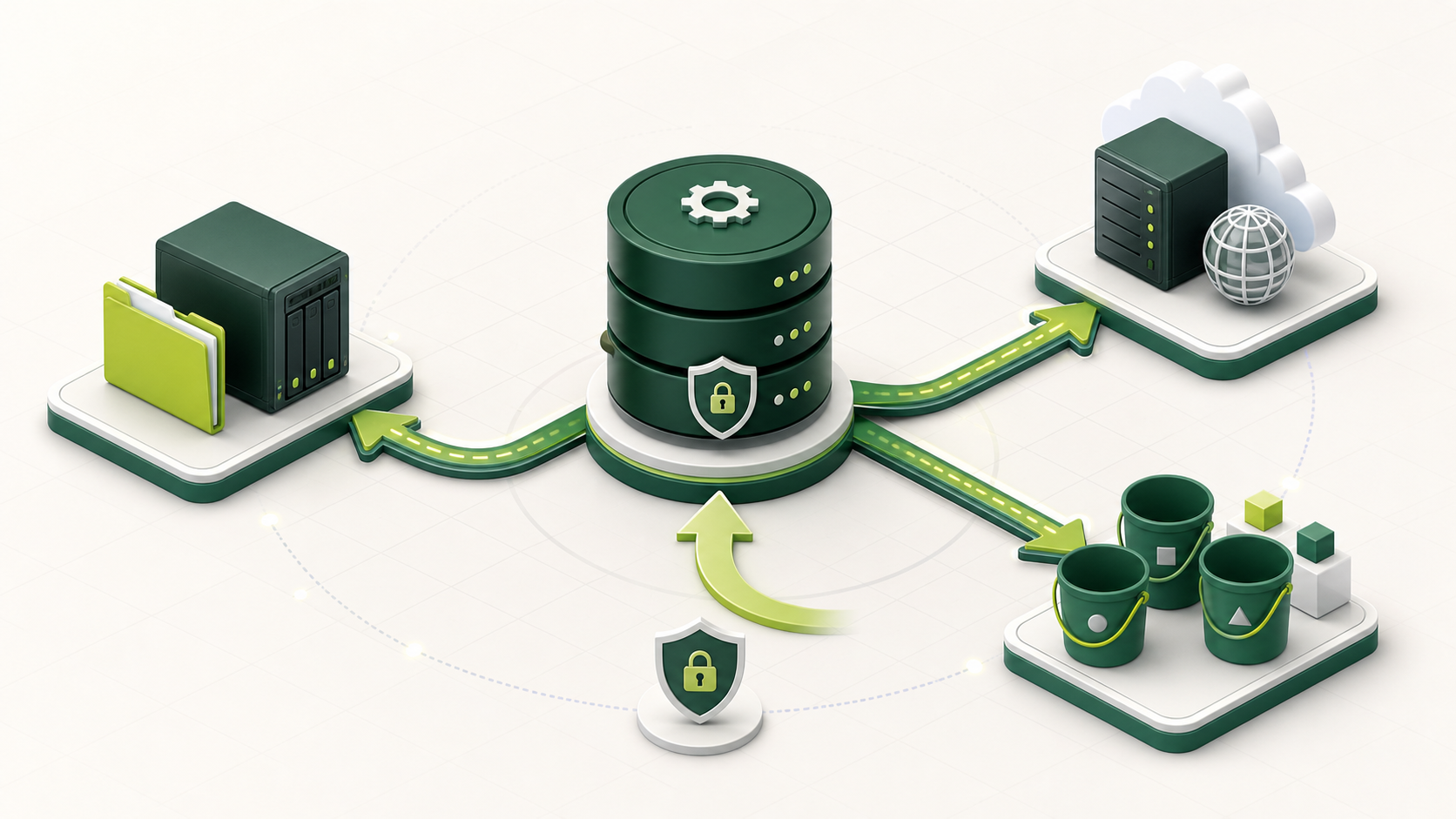
Suitable for a mounted NAS folder or locally available Google Drive, Dropbox, OneDrive, iCloud or rclone folder. Docker must be able to see the folder first.
A direct HTTPS collection, for example Nextcloud or ownCloud. Configure its address and credentials under Backup/Connections.
Object storage for automated off-site retention. Use a separate account or restricted key for this backup destination.
Open Data and choose Import backup. Parts Inventory validates the file before mutation, creates a safety snapshot, restores transactionally and checks database integrity. An encrypted export requires the exact original key or password. Existing browser sessions are revoked after a successful restore.